Chat Master
Documentation
Write, research, analyze documents, and switch models in one Chat Master conversation — with web search and file uploads when the model supports them.
Overview
Chat Master is Neurohelper AI’s workspace for conversations, research, writing, coding, document analysis, and problem solving. You pick a model, type a request, and can keep going in the same thread — refine the ask, upload files, or switch models without starting over.
Typical work includes:
- Content creation and editing
- Research and information gathering
- Programming and code review
- Document analysis
- Translation and localization
- Business planning and strategy
- Learning and ideation
Depending on the model, Chat Master may also support web search, file analysis, longer context, deeper reasoning, multilingual chat, and structured outputs. Available features vary by model.
AI-generated responses can be inaccurate or out of date. Check important results before you rely on them for business, legal, financial, medical, or other high-impact decisions.
Available models
Chat Master groups models from several families in one picker, so you can match the model to the task instead of moving between products. Current examples, also linked from Getting started, include OpenAI GPT-6 Astra Pro, Anthropic Claude Opus (Latest), Anthropic Claude Fable (Latest), and OpenAI GPT-6.1 Terra Pro. See the AI Models hub for specs. Names and availability change as new systems are added.
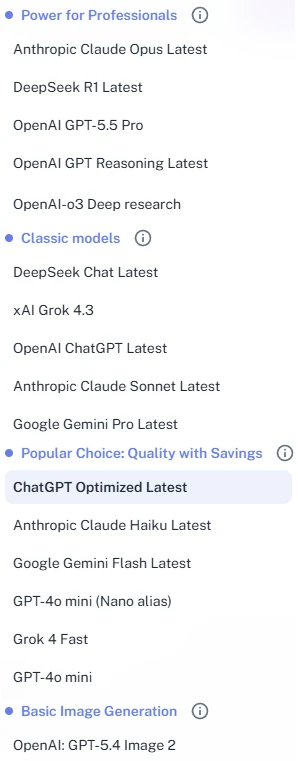
The families you will usually see are:
- OpenAI models — a common starting point for writing, business tasks, coding, and general work.
- Claude models — often chosen for long documents, careful reasoning, and business writing.
- Gemini models — useful for everyday productivity and mixed text-and-image tasks.
- DeepSeek models — a frequent choice for coding, math, and technical analysis.
- Grok models — used for general knowledge, brainstorming, and conversational research.
The picker also groups models into categories (for example professional, classic, and faster everyday options) so you can scan by job rather than by vendor. Treat those groups as a guide — open the AI Models page for the current list.
Screenshots on this page show the picker layout, not a live catalog. Always use the names you see in the app today.
Choosing a model
The right model improves both quality and how smoothly the work goes. Some models are stronger at deep reasoning and research; others are faster for everyday questions and drafts.
If you are not sure, start with a general-purpose model in the picker, then switch if you need more depth. A short way to choose:
| If you need | Start with |
|---|---|
| Everyday writing and conversation | A general-purpose model (examples: OpenAI GPT-6 Astra Pro, OpenAI GPT-6.1 Terra Pro) |
| Long-form writing and careful analysis | A Claude or similarly strong writing model (examples: Anthropic Claude Opus (Latest), Anthropic Claude Fable (Latest)) |
| Coding, debugging, or technical reasoning | A reasoning or specialist coding model |
| Multi-step research | A research-oriented model |
| Fast drafts and iteration | A faster, lighter model in the everyday group |
More capable models often use more credits. This page does not list amounts, because they change. Choose based on the task, then look at the cost shown in the app before you run a long job.
Conversations
Work in Chat Master is organized as conversations. The model can refer to earlier messages in the same thread, so you can refine a draft, ask follow-up questions, or change direction without restating everything.
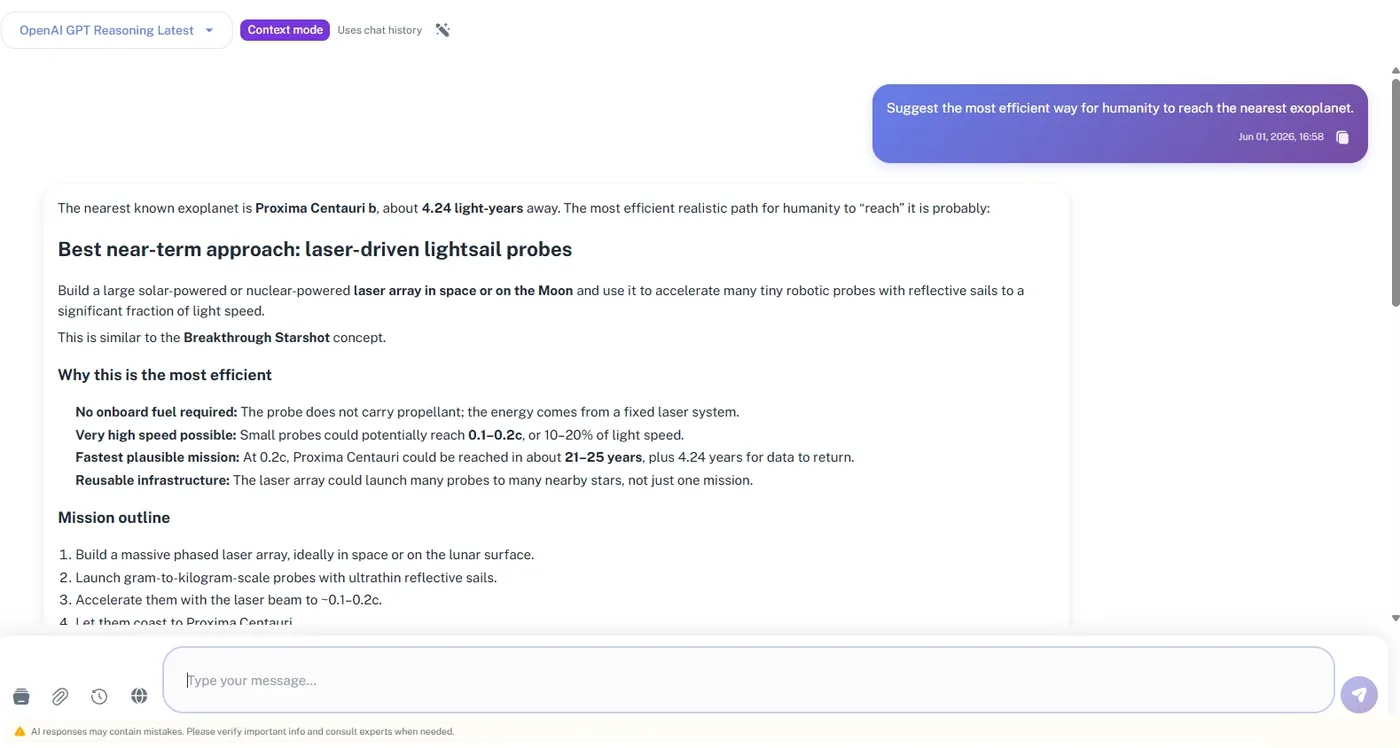
- Start a new conversation when the topic changes, so context stays focused.
- Stay in the same conversation when you are iterating on one document, plan, or codebase.
- You can switch models in a thread when that option is available, and keep the history you already have.
- Open earlier chats from history when you need to return to a project.
Put the goal and any constraints in the first messages. The rest of the thread is clearer when the model has that context early.
Files and documents
You can upload files into a conversation and ask the model to analyze, summarize, explain, compare, or extract information. Uploaded files become part of that conversation’s context.
You can upload images, PDF, .doc/.docx, .txt, .md, .rtf, audio, or video — the same types listed on Getting started. What a specific model can do with a file may still vary.
Useful asks after you upload:
- Summarize this document, or write an executive summary
- Extract key findings or action items
- Explain the report in simpler language
- Compare two files, or flag risks and inconsistencies
- Translate the document
For a long file, asking several focused questions often works better than one very broad instruction. If you are working with several documents, say how they relate. Always review conclusions before you use them in legal, financial, medical, regulatory, or business-critical work.
Web search
Some models can search the web and use what they find in the reply. That helps when you need current information — news, pricing pages, recent documentation, or facts that may have changed since the model was trained.
Web search is not available on every model. If you need it, choose a model that lists the capability, then ask a specific question (include dates, product names, or URLs when you have them). Treat retrieved information as a starting point and verify anything important.
Chat settings
Chat Master is set up so most of the work is choosing a model and writing a clear request, rather than tuning a long list of parameters.
- Model selection — the main control. It determines quality, speed, features such as web search or file analysis, and credit use.
- Conversation management — continue a thread, start a new one, or move between chats without extra setup.
- Features — tools such as file upload and web search appear when the selected model supports them.
Prompting
Clear, specific instructions usually produce more useful answers. A strong prompt states the goal, gives context, and describes the output you want.
Instead of “Tell me about marketing,” try: “Create a digital marketing strategy for a new AI startup targeting small businesses.” Instead of “Write an email,” try: “Write a professional follow-up email to a potential client who attended a product demo last week.”
It also helps to:
- Specify the format (bullets, a table, a script, a one-page brief).
- Set constraints (length, tone, audience, what to leave out).
- Refine with follow-up questions instead of starting over each time.
If the first reply is close but not right, say what to change. Models handle revision well when you point to the part that missed.
Best practices
- Keep each conversation focused on one job or project.
- Give context early: audience, goal, and source material.
- Use follow-ups to tighten the result.
- Choose the model for the task, not the same model for everything.
- Break large jobs into smaller steps.
- Review important outputs before you use them.
Use Case Library
Chat Master includes a Use Case Library of ready-made prompt templates, organized by topic (for example business and management, then more specific tasks such as market research). You can open a template, fill in your details, and send it as a starting prompt.
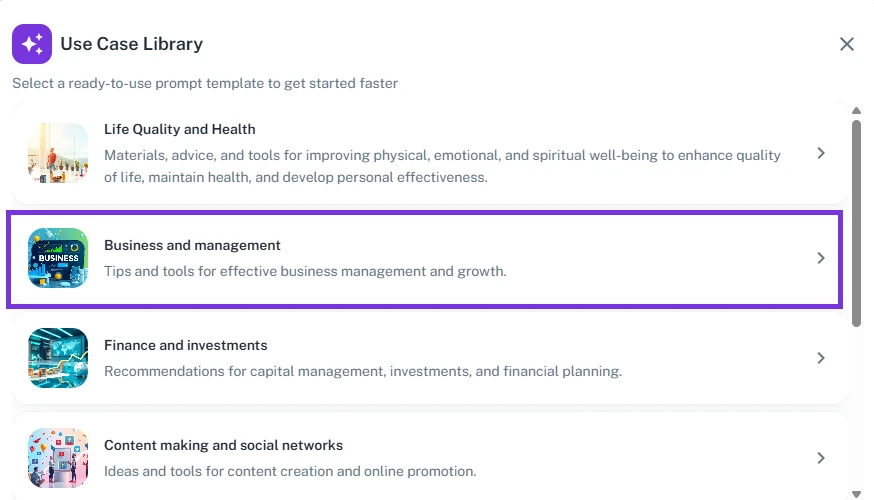
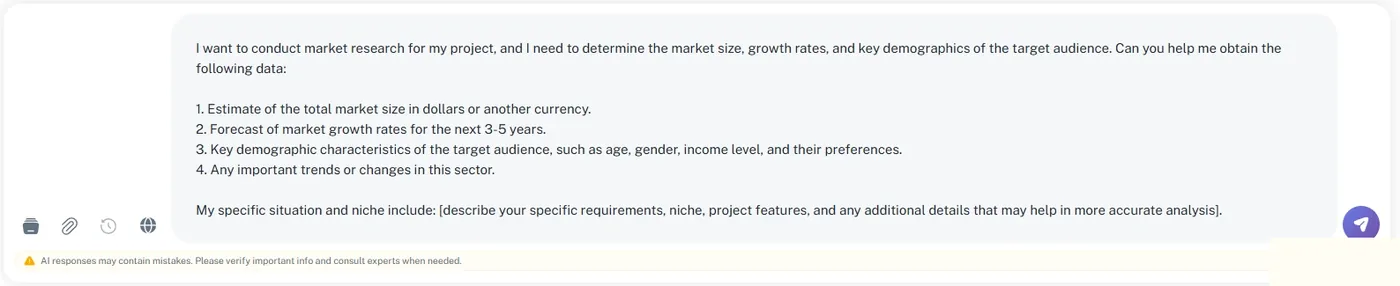
Templates are a starting point, not a required workflow. Edit the wording so it matches your situation. The library is organized for browsing; new templates may be added over time.
Frequently asked questions
Which model should I choose?
For everyday writing, research, and file work, start with a general-purpose model. Current examples on the AI Models pages include OpenAI GPT-6 Astra Pro, Anthropic Claude Opus (Latest), Anthropic Claude Fable (Latest), and OpenAI GPT-6.1 Terra Pro. Pick a deeper reasoning or research model when the task is multi-step or technical. The lineup changes, so use the names you see in Chat Master.
Why do different models produce different answers to the same prompt?
Each model has its own strengths and limits, so the same request can come back with a different structure, tone, or level of detail.
Can I switch models during a conversation?
Yes, when the platform supports it for the models you have selected. Switching lets you keep the same thread and try a model that fits the next step better.
Do models remember previous conversations?
A model can use the context in the current conversation. It does not automatically remember other, unrelated chats. Stay in the same conversation when you need continuity.
Why did the model give an incorrect answer?
Responses can be inaccurate, incomplete, or out of date. Review anything you will use for business, legal, financial, medical, academic, or other high-impact decisions.
Why does the same prompt sometimes produce different results?
Answers are not always identical. The model, the conversation so far, small changes in wording, and product updates can all change the output.
Can Chat Master access current information from the internet?
Some models include web search and can look up current information. Whether search is available depends on the model you select.
Can I upload files and documents?
Yes. You can upload images, PDF, .doc/.docx, .txt, .md, .rtf, audio, or video and ask the model to summarize, extract, compare, or explain them. What a given model can do with a file may still vary.
Is my data used to train AI models?
Neurohelper AI does not use your conversations, prompts, or uploaded content to train its own models. Providers may have their own practices — see the Privacy Policy and Terms of Service.
Why do some models use more credits than others?
More capable models often need more compute and may offer longer context, stronger reasoning, or extra features, so they often use more credits. This page does not list credit amounts, because they change.
What happens if a model becomes unavailable?
Neurohelper AI updates the catalog as models are added, replaced, or retired. If a model you used is no longer listed, choose a current alternative from the picker or the AI Models pages.
Can AI replace professional advice?
No. Treat Chat Master as a productivity and decision-support tool, not a replacement for qualified professionals. Consult an expert for legal, financial, medical, regulatory, or other specialized questions.
How can I improve response quality?
Give a clear goal, add relevant context, say how you want the output structured, use follow-up questions, and choose a model that matches the task.
Where should I start as a new user?
Open Chat Master, pick a general-purpose model, and ask for something specific. The in-app Use Case Library has ready-made prompts if you want a template to start from.