How to start in Neurohelper AI, choose a plan, and open Chat, Images, Video, and Audio — with links to model specs, guides, and comparisons.
Last updated: 21 Nov 2026.
Docs sections
Five starting points. In the app sidebar the studios are Home, Chat Master, Image Master, Audio Master, and Video Master (Audio Master is listed above Video Master). Docs URLs stay as they are.
In the app this is Video Master. Text-to-video and image-to-video with Kling 4.0, Seedance 2.5, Veo 3.1 Pro, and Wan 3.0. Some video models include a Generate Audio toggle, including Veo 3.1 Pro, Seedance 2.5, and Wan 3.0. Native soundtrack support is listed on each model’s page.
AI Presenter Studio and AI Dubbing Studio live under Video Master. AI Dubbing Studio accepts MP4, MOV, AVI, and WEBM. Campaign examples are also collected on the Ads pages.
Four steps from a new account to a first result. App screens below are from the signed-in product.
1
Create an account
Go to app.neurohelper.ai and click Get Started. Enter your first name, last name, email address and a password (6+ characters), then click Create account, or sign up with Google, GitHub, X or Facebook. After signing in you land on Home, where you can start in any studio.
2
Start with a $1 trial
Start a 3-day trial of the Basic plan for $1. When the trial ends, the account continues on Basic. When you are ready to choose a paid plan, see the plans page.
3
Choose a studio and a model
From Home or the sidebar, open Chat Master, Image Master, Audio Master, or Video Master, then pick a model. Specs live on the AI Models hub. If this is your first video, follow How to make AI videos.
4
Run a generation and find the result
Write a clear prompt, and attach a reference if the model needs one. Gemini Omni 1.2 Flash requires at least one reference. The app shows the cost of each generation before you run it. Finished stills appear in the Image Master Gallery; finished videos appear in the Video Master Gallery (Audio Master has an Audio Library).
Ready to open the workspace? Create an account and start with a $1 trial.
The signed-in sidebar lists those studios under Home, in this order: Chat Master, Image Master, Audio Master, Video Master. Video Master includes Create, Gallery, Upscale, Dubbing, and AI Presenter Studio.
What you can create
These examples were made in Neurohelper AI and already published on the site. Each card links to the relevant docs, model page, and a guide.
An invented deep-sea diver in a vintage brass helmet (face not visible), generated as a character reference. Use it as a starting point, then open Images docs or the guide How to create an AI influencer.
Character reference, full body front view of an invented deep-sea diver in a vintage polished brass diving helmet with three round portholes and dark tinted glass (face never visible), a heavy rust-orange canvas diving suit, and a single warm headlamp mounted on the right side of the helmet, standing centred on a dark teal studio background, cinematic lighting, highly detailed brass with scratches
Show prompt
Character reference, full body front view of an invented deep-sea diver in a vintage polished brass diving helmet with three round portholes and dark tinted glass (face never visible), a heavy rust-orange canvas diving suit, and a single warm headlamp mounted on the right side of the helmet, standing centred on a dark teal studio background, cinematic lighting, highly detailed brass with scratches
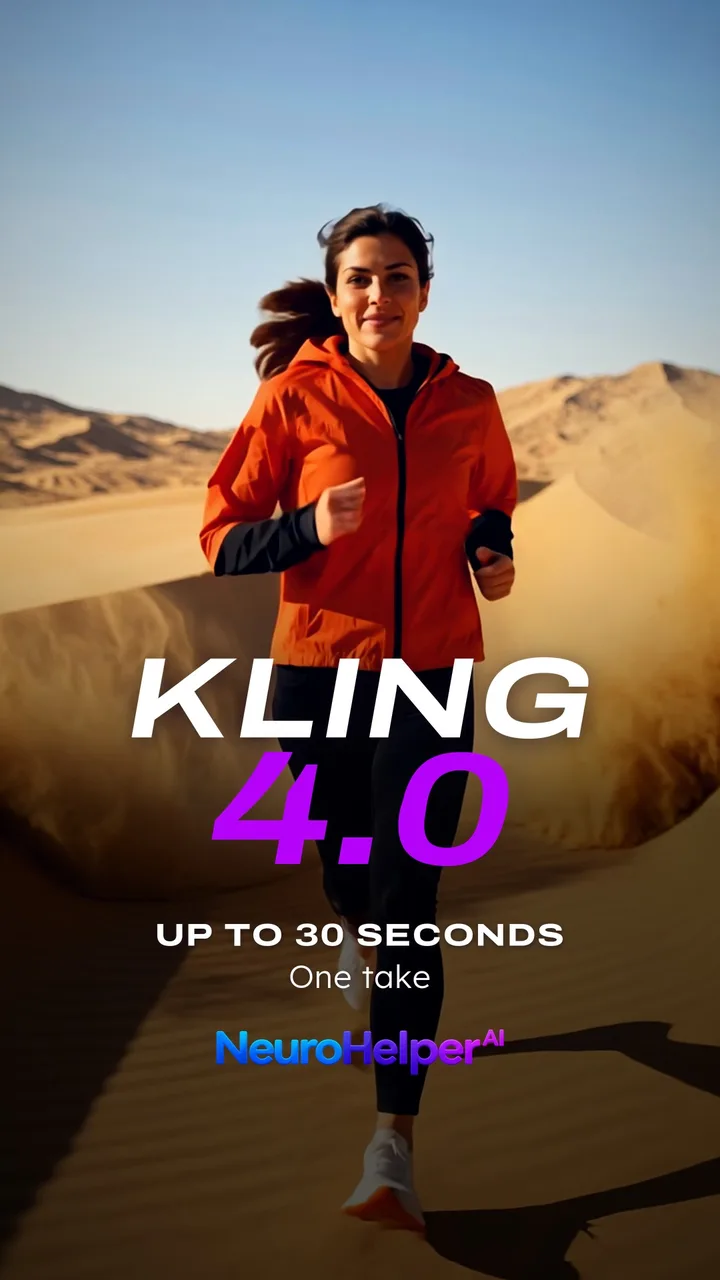
A runner moves from a sunny city street into desert, then snow. This is one Kling 4.0 generation, made in Neurohelper AI from a first frame and one prompt. The published Short is an edit of that take with music, titles and an end card, not the raw uncut take. See Video docs and How to make AI videos.
First-frame inputPublished Short
Photorealistic 9:16 live-action sports film. ONE continuous 30-second shot: no cuts, no scene jumps, no fades to black. Start exactly from the attached first frame. The runner is the woman from the first frame, Anya: 28, light olive skin with freckles, dark chestnut low ponytail, hood down, bright orange windbreaker, black tights, white shoes with orange soles. Keep her exact face and outfit the whole time.

Camera: locked in one position relative to her for all 30 seconds: in front of her and slightly to her right, moving backwards at her speed, medium-wide, her whole body visible and centred. The camera never switches sides, never goes behind her, never changes framing.
Show prompt
Photorealistic 9:16 live-action sports film. ONE continuous 30-second shot: no cuts, no scene jumps, no fades to black. Start exactly from the attached first frame. The runner is the woman from the first frame, Anya: 28, light olive skin with freckles, dark chestnut low ponytail, hood down, bright orange windbreaker, black tights, white shoes with orange soles. Keep her exact face and outfit the whole time.

Camera: locked in one position relative to her for all 30 seconds: in front of her and slightly to her right, moving backwards at her speed, medium-wide, her whole body visible and centred. The camera never switches sides, never goes behind her, never changes framing.

Her running never changes: same steady fast pace, same rhythm and direction, running toward the camera the whole time. Real athletic running: feet plant firmly with real weight, ponytail and jacket bounce, arms swing naturally, mouth slightly open breathing, light exertion on her face, natural blinking and small head movements. No smiling mask, no frozen face, no sliding feet, no jumps.

Bright sunny daylight, clear blue sky, vivid natural colours throughout.

The world changes AROUND her while she keeps running, smoothly and gradually, like a time-lapse of the landscape, never a cut:
0-9s: a sunny city morning, she runs along a wide clean street, shop windows, trees, long soft shadows.
9-13s: seamless transition: the buildings thin out and sink away, the asphalt slowly fills with drifting sand and becomes a firm sand path, and dunes rise on both sides. Her stride does not change.
13-20s: a real desert of big golden dunes, warm sun, fine sand blowing off the ridges, fresh footprints only behind her.
20-24s: seamless transition: the air turns cool, the sand lightens to white, frost and then snow spread over the ground, the dunes rise into snowy mountains and a blue glacier appears beside her path. Her stride does not change.
24-30s: a sunlit snowy mountain plateau beside a bright blue glacier, deep blue sky, glittering snow, untouched snow ahead of her, footprints only behind her, breath visible. She keeps running toward the camera.

Realistic places only, no fantasy elements, no animals, no other people.

Sound: steady footsteps that change from pavement to soft sand to crunching snow, light city ambience, then wind. No music, no voices, no text, no logos.
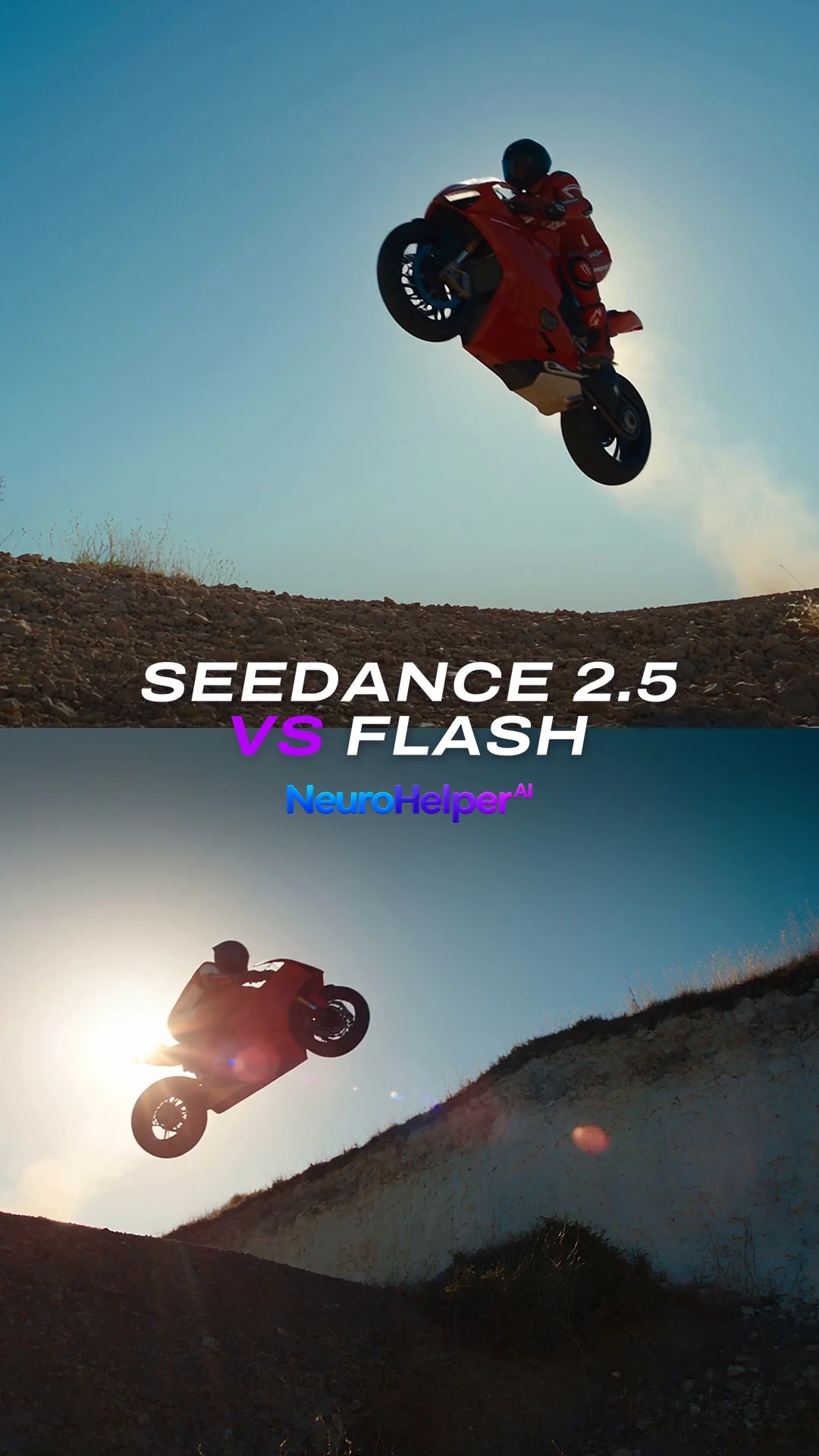
Generated from a text prompt only, no input image. The same prompt was also run on Seedance 2.5 Flash; both results appear in the published comparison short. See Video docs and How to make AI videos or AI video prompts.
Arricam LT, Cooke S4/i primes, Kodak Vision3 250D, spherical, T2.8, shallow depth of field, natural halation on sun highlights, fine organic grain, no sharpening, no HDR. Cinematic commercial look.

Bright sunny midday on a coastal mountain serpentine road above a turquoise sea, white cliffs, dry golden grass, clear blue sky, crisp hard sunlight. One rider in a matte black helmet with a dark visor and a red-and-white leather racing suit on a red sport motorcycle. The same rider and motorcycle in every shot, no other vehicles, no other people.
Show prompt
Arricam LT, Cooke S4/i primes, Kodak Vision3 250D, spherical, T2.8, shallow depth of field, natural halation on sun highlights, fine organic grain, no sharpening, no HDR. Cinematic commercial look.

Bright sunny midday on a coastal mountain serpentine road above a turquoise sea, white cliffs, dry golden grass, clear blue sky, crisp hard sunlight. One rider in a matte black helmet with a dark visor and a red-and-white leather racing suit on a red sport motorcycle. The same rider and motorcycle in every shot, no other vehicles, no other people.

[00:00-00:03] Shot 1: Ground level. The lens rests on the asphalt at the apex of a curve; the motorcycle screams toward the lens and leans hard right just past it, the front tyre filling the frame for a split second, dust and small stones flicking at the lens.
[00:03-00:06] Shot 2: Tracking, low angle. The camera travels alongside at wheel height at the same speed as the bike, moving left to right, the sea blurred behind. The rider drops into a deep lean, the knee slider touches the road and throws a stream of bright sparks.
[00:06-00:09] Shot 3: Extreme close up in slow motion. The knee slider grinding on the asphalt, sparks and tiny stones floating in the air in super slow motion, sunlight glinting on the carbon slider. Speed snaps back to real time at the end of the shot.
[00:09-00:12] Shot 4: Drone. A sweeping high move from behind and above, the camera chases the bike along the winding road and climbs over it, revealing the cliffs and the sea far below, the bike small and fast in the centre of the frame.
[00:12-00:15] Shot 5: Wide shot, slow motion jump. The bike crests a sharp rise in the road and lifts both wheels off the ground, the camera low and square to the side, the bike hanging in the air against the sun in slow motion, a lens flare crossing the frame, dust trailing behind.
[00:15-00:17] Shot 6: Over the shoulder. The camera is directly behind the rider, low and close over the right shoulder, the helmet in the foreground and the road rushing toward the lens; the rider twists the throttle hard.
[00:17-00:20] Shot 7: Whip pan. The camera rests on the sea, then whips fast to the left with heavy motion blur and lands clean on the bike rushing past the lens and away down the straight, leaving a trail of dust glowing in the sunlight.

Audio: natural diegetic sound only. High-revving sport bike engine, gear shifts, tyre squeal, the scrape of the knee slider, wind rush, a deep slowed-down engine roar during the slow motion moments. High quality sound effects and full sound design throughout. No music, no score, no voice.
Note
A Veo 3.1 deep-dive short is also on the Veo 3.1 Pro page.
Plans and access
Neurohelper AI offers a $1 trial plus four paid plans: Basic, Pro, Business, and Enterprise. This page lists plan names and what each plan includes on the public plans page (checked 21 Nov 2026). It does not list subscription amounts, because they change.
See current prices and subscribe. The live plans page is the source of truth for amounts and the monthly or annual toggle.
A 3-day trial of the Basic plan for $1. When the trial ends, the account continues on Basic.
Basic
Basic
Perfect for everyday AI
Unified AI workspace and latest AI models in one place
AI Chat, Images, Audio, and Basic Video
Ready Prompt & Workflow Library and Professional Prompt Builder
Standard email support
A monthly credit balance (see How credits work; no amounts on this page)
Pro
Most popular
Best for creators & marketers
Everything in Basic, plus:
Premium AI Video Models
AI Presenter Studio — a library of ready-made, licensed AI presenters. Uploading real people's faces is not supported.
AI Dubbing Studio — translate and voice your own videos into other languages. Accepts MP4, MOV, AVI, and WEBM.
Professional Video Editing Tools
Priority email support
Business
Business
Built for growing teams
Everything in Pro, plus:
Business AI Workflows
Custom AI Automations
Advanced API Integrations
Highest Generation Limits
Premium Support
Enterprise
Enterprise
Advanced AI for larger teams
Everything in Business, plus:
Shared Team AI Workspace
Role-Based Access Control
Custom Usage Policies & Limits
Team Usage Management
Dedicated Success Manager
5 seats
How credits work
Each plan includes a monthly credit balance.
The same balance is used for chat, images, video, and audio.
Usage depends on the model and the task. For video, duration and resolution also matter.
The app shows the cost of each generation before you run it.
You can top up credits.
Unused credits roll over to the next month, up to the cap set for your plan.
Higher-tier plans include a larger balance.
Tip
Open User Panel → Credits to view your credit history. Unused credits stay within the cap set for your plan.
Account
Sign in. The sign-in page accepts an email address and password, and also offers Google, GitHub, X, and Facebook. After signing in you land on Home, where you can start in any studio.
Forgot password. On the sign-in page, click Forgot password?. Enter the email address associated with your account and click Send request. We'll email you a link to reset your password. To go back, click Return to sign in.
Manage or cancel a subscription. Open your account avatar, then go to User Panel → Manage Subscription → Subscription & Billing. From there you can use Upgrade Plan or Manage billing. To cancel, go to User Panel → Subscription & Billing; cancellation is available there. Cancellation and refunds are also described in the refund policy.
Create an account, start with a $1 trial, then choose a studio — Chat, Images, Video, or Audio — and a model. Follow the Quick start steps on this page. When you are ready to pick a paid plan, see the plans page.
Which plans are available?
Neurohelper AI offers a $1 trial plus Basic, Pro, Business, and Enterprise plans. The $1 trial is a 3-day trial of the Basic plan; when it ends, the account continues on Basic. Basic is described as perfect for everyday AI and includes a unified AI workspace, AI Chat, Images, Audio and Basic Video, a prompt and workflow library, Prompt Builder, and standard email support. Pro is marked as most popular and lists Premium AI Video Models, AI Presenter Studio, AI Dubbing Studio, Professional Video Editing Tools, and priority email support. Business lists everything in Pro, plus Business AI Workflows, Custom AI Automations, Advanced API Integrations, Highest Generation Limits, and Premium Support. Enterprise lists everything in Business, plus Shared Team AI Workspace, Role-Based Access Control, Custom Usage Policies and Limits, Team Usage Management, a Dedicated Success Manager, and 5 seats. See the plans page for the live feature list.
How do credits work?
Each plan includes a monthly credit balance. That balance is shared across chat, images, video, and audio. How many credits a task uses depends on the model and the job — for video, duration and resolution also matter. The app shows the cost of each generation before you run it. You can top up credits. Unused credits roll over to the next month, up to the cap set for your plan. Credit history is in User Panel → Credits. Higher-tier plans include a larger balance.
What is AI Presenter Studio?
In AI Presenter Studio you choose from a library of ready-made, licensed AI presenters. Uploading real people's faces is not supported. See the Advertising Studio section in the Video docs for how to use it.
Yes. Advertising Studio — AI Presenter Studio and AI Dubbing Studio — is documented in the Video section. The Ads pages collect campaign-oriented examples. Presenters come from a ready-made licensed library; uploading real people's faces is not supported.