
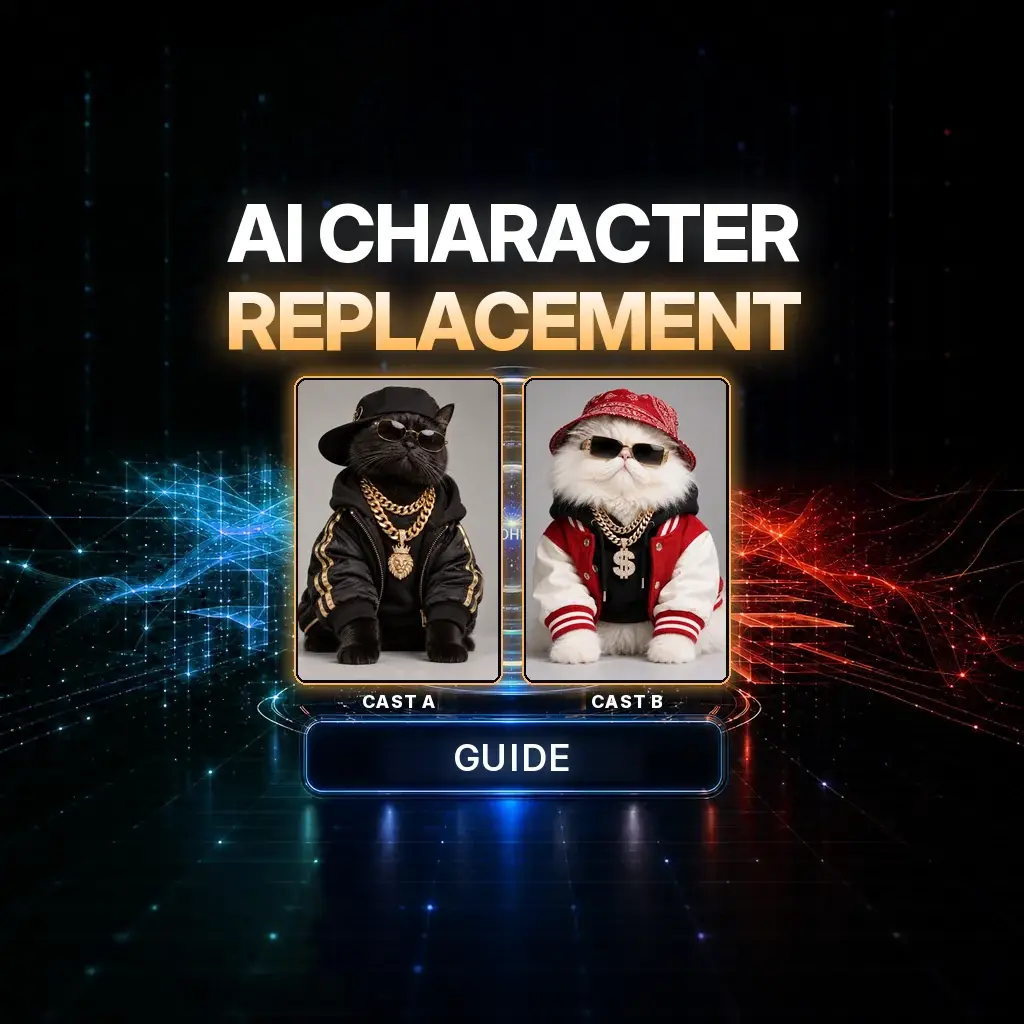
Character replacement is a disciplined swap: a source performance keeps its movement, camera, choreography, and timing; two stills decide who the performers are. The video is the motion master. The images are identity. Nothing else should improvise a new dance.
The official NeuroHelper worked example uses Seedance 2.5 Video Edit and two AI animal characters — a black cat as the main singer, a white cat as the hype man — in place of the original two performers. You can use pets, people, or AI characters, as long as each still is one clearly different performer. Watch this page’s stills as a small cast board. The official YouTube walkthrough for this example is coming soon, so the large-media slot is reserved for that film.
Video coming soon. The official walkthrough for this character-replacement example will be added here. Until then, use the stills and the prompt below as the teaching materials.
Case study / Character stills from the official guide
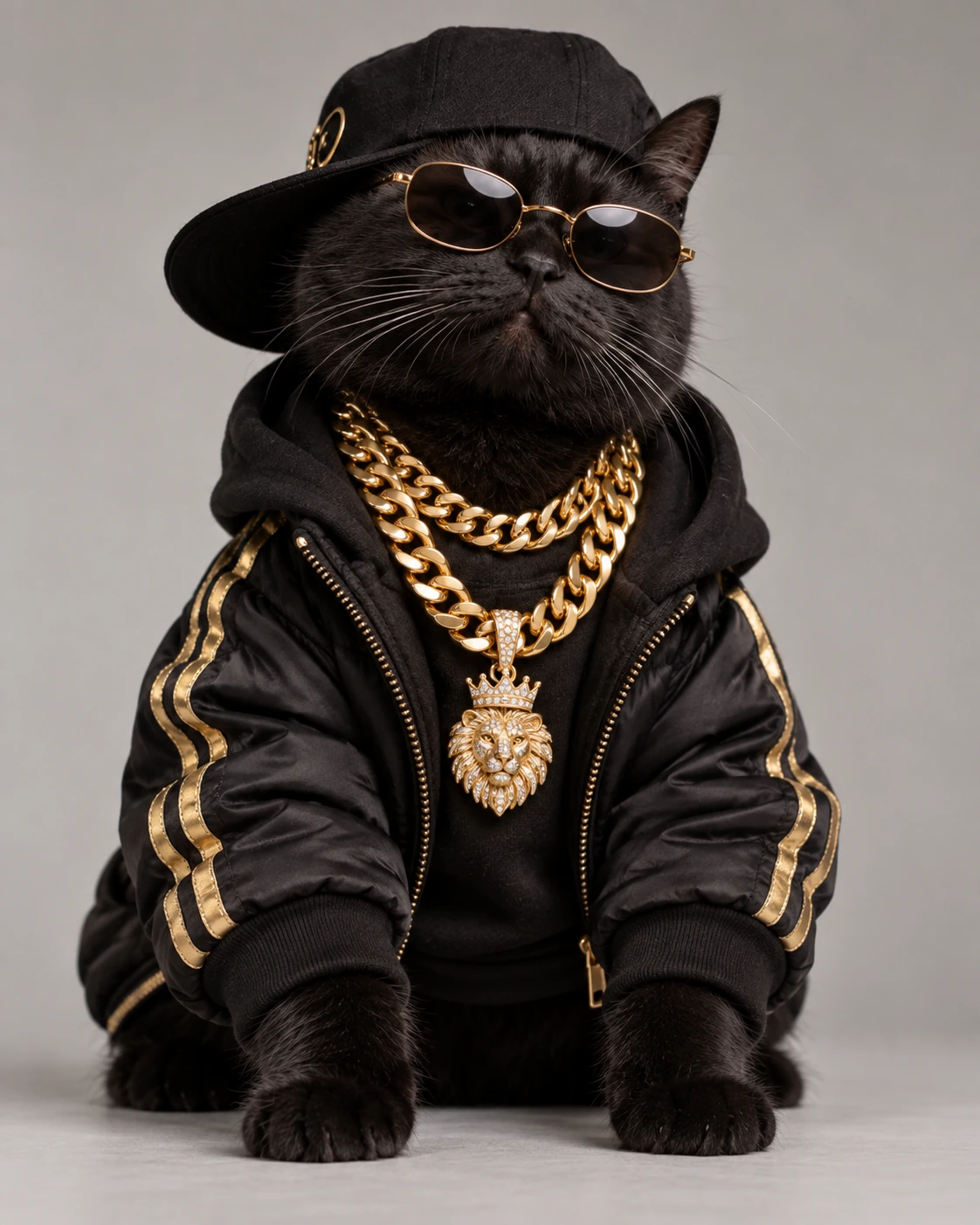 01 Lead
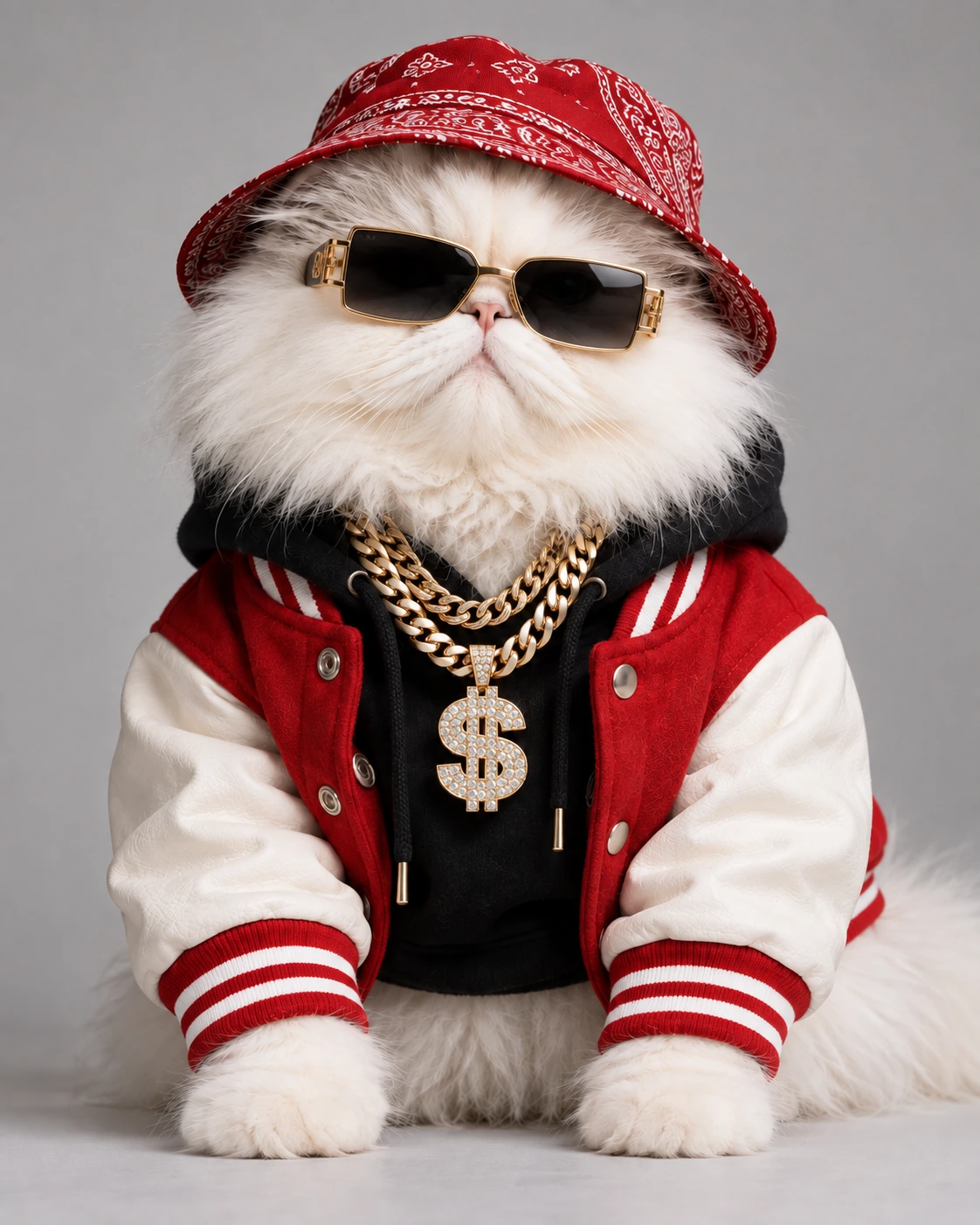 02 Hype
The workflow: Start with a 4–30 second performance you recorded or otherwise have the right to edit → prepare two character stills → in Video Master, choose Seedance 2.5 Video Edit, attach a copy of the clip plus the two stills → paste the two-performer prompt → review roles, lip timing, and background → finish audio only with a soundtrack you have rights to use.
What you can — and cannot — start from
Use a source performance you own, recorded yourself, or have a license to edit. The official tutorial demonstrated the idea with a short studio performance (about 4–30 seconds is the useful range) and two clearly different characters. This article will not ask you to pull a viral music video off the open web, and it will not ask you to lift someone else’s commercial soundtrack. If you want the finished film to carry a specific song or vocal, only lay back audio you have the right to use — a track you recorded, a licensed bed, or a silent picture with new sound from Audio Master. For a single reusable face rather than a two-performer swap, see how to create an AI influencer, which also uses Seedance 2.5 Video Edit, with a simpler one-line replacement prompt.
The production pipeline
1. Prepare the clip and the two stills
Keep a high-quality copy of your source performance. If you prefer the model not to lean on the source soundtrack, you can upload a muted copy and keep the original file for a later licensed audio layback — that is an editing preference, not a request to borrow a song. In Image Master, or from photos you already have, make @Image 1 (lead / main singer) and @Image 2 (second performer / hype man). Best results: one character per image, a clear face, good light, recognizable clothing or accessories, consistent proportions. Pets, people, or AI characters all work if the two looks cannot be confused. A current still model such as GPT Image 2.6 is fine for generated characters. Keep identity original, as in the influencer brief: inspiration is allowed, copying a real face is not the job.
2. Generate in Seedance 2.5 Video Edit
Open Video Master → Create and choose Seedance 2.5 Video Edit, because the existing video is the master for movement, framing, cuts, and timing. Attach, in this order: the source video, @Image 1 (main singer), @Image 2 (hype man). Official settings shown in the tutorial: 720p, MP4. Generate-audio can stay on if you want a scratch track; you will still decide later whether to keep it. Confirm options in the current picker, paste the prompt below as one block, and generate.
3. Review, then finish sound only with rights you have
Before you download, check: the lead stays the lead; the second performer never swaps roles or blocks the microphone; mouth timing follows the source; camera, cuts, and choreography still match; the studio background stays the official color (vivid orange in the worked example) rather than inheriting a still’s backdrop; faces, fur or hair, clothing, and accessories remain stable. If something drifts, do not rewrite the whole prompt. Strengthen only the failing instruction. For sound: mute a scratch track if you need to, and only add a song, vocal, or bed you are allowed to use.
Copy-ready two-performer prompt
This is the official Seedance 2.5 Video Edit brief, tightened for a paste box. Keep it as one prompt.
SEEDANCE 2.5 VIDEO EDIT — TWO PERFORMER REPLACEMENT

@Video 1 is the ABSOLUTE MASTER for motion, choreography, camera, timing, editing, microphone, studio, lighting and background.
@Video 1 = source video (motion master)
@Image 1 = MAIN SINGER / LEAD PERFORMER
@Image 2 = HYPE MAN / SECOND PERFORMER

In the official example, @Image 1 is the black cat and @Image 2 is the white cat. If you use people or different characters, keep the same role structure and preserve their exact identity from the reference images.

Recreate @Video 1 as closely as possible, frame by frame. Replace ONLY the two original performers.

Copy exactly from @Video 1: all body movements; all mouth and jaw movements; all head tilts and turns; all eye movements; all hand or paw gestures; all body sways, bounces, leans and poses; all dance moves and reactions; all pauses and performance timing; all camera framing and movement; all zooms, shot durations and cut points; microphone position; studio composition; lighting and color grading.

Do not invent new choreography. Do not add, remove, shorten, extend, merge or reorder shots. Do not slow down the video. Do not reinterpret the performance.

MAIN SINGER — @Image 1
Preserve the exact identity of @Image 1: face, hair or fur, body proportions, clothing and accessories. This character replaces the MAIN SINGER and copies the original lead performance frame by frame, including mouth timing, jaw timing, head movement, gestures, body sway, poses and microphone interaction.

MOUTH ARTICULATION
The MAIN SINGER must visibly perform every vocal phrase. Keep the exact lip-sync timing from @Video 1, but make the mouth articulation slightly stronger and easier to read — approximately 15–20% more visible. This changes ONLY the amount of mouth opening. Do not change timing, rhythm, duration, head movement, body movement or choreography. No random chewing, no delayed lip sync, no exaggerated mouth deformation.

HYPE MAN — @Image 2
Preserve the exact identity of @Image 2. This character replaces the SECOND PERFORMER and copies the original hype-man choreography exactly. Do not invent new dance moves. The HYPE MAN is not the lead singer.

ROLE LOCK
Never swap roles or identities. The second performer must never block the singer or the microphone.

CAMERA / EDIT LOCK
Treat @Video 1 as a frame-by-frame camera and editing template. Keep the same camera angle, crop, distance, motion, speed, zoom, shot duration and cut timing. Do not introduce new shots or camera moves.

BACKGROUND LOCK
Keep the studio environment exactly as shown in @Video 1, including background color, lighting, shadows, contrast and color grading. In this example, keep the original vivid ORANGE studio background unchanged. Do not turn it red, burgundy, brown, yellow, pink, purple or beige. Do not inherit the backgrounds from @Image 1 or @Image 2.

MICROPHONE
Keep the same hanging microphone from @Video 1: same position, height and distance from the main singer.

IDENTITY CONSISTENCY
Keep both characters consistent in every shot. Clothing and accessories may move naturally, but must not disappear, multiply or morph.

STYLE
Ultra-photorealistic cinematic footage. Natural anatomy, realistic hair or fur, realistic fabric and jewelry, natural lighting, realistic motion blur and depth of field. High-end music-video quality. No cartoon, mascot, plush-toy or cheap-CGI look.

AUDIO
Visual performance is the priority. Any generated audio may be discarded in the final edit. Keep mouth and body timing aligned to @Video 1.

NEGATIVE
No original performers, no extra or duplicate character, no swapped roles, no identity drift, no new choreography, no altered performance timing, no weak lead lip sync, no closed mouth during vocal phrases, no random chewing, no delayed lip sync, no exaggerated mouth, no face or wardrobe change, no missing accessories, no deformed limbs, no slow motion, no missing or extra shots, no changed cut points or camera path, no background color shift, no studio redesign, no missing microphone, no cartoon, no cheap CGI, no text, no subtitles, no watermark.How to do this in NeuroHelper AI
- Image Master. Two stills, two roles, clearly different identities.
- Chat Master, optional. If you need help generating original characters first, use the same “new character, not a copied face” habit as the influencer guide.
- Video Master. Seedance 2.5 Video Edit, source clip, two stills, one prompt.
- Audio Master or your editor. Finish with sound you have rights to — not a ripped commercial vocal.
If what you actually want is new cameras on the same people, that is a different official workflow: new camera angles without a reshoot. Related craft: the realism playbook, hooks, and cinematic action. Model context: the models hub, best AI video generators, and Seedance vs Kling.
Mistakes that break a two-performer swap
- Swapped roles. The second character must never become the lead or cover the microphone.
- A background borrowed from a still. The official example locks a vivid orange studio from the source video, not from the cat portraits.
- New choreography. If the dance changes, you are no longer replacing characters; you are directing a different video.
- Weak or wandering lead lip sync. Timing stays; only the amount of mouth opening may be slightly stronger.
- Using a source song or a source video you do not have rights to. Start from a performance you can actually edit and publish.
When the official film is added, watch that first
Until the walkthrough is added, use the two stills and the prompt as the teaching materials. The test will be the same: same dance, same cuts, two new, stable identities, and sound you are allowed to ship.
Frequently asked questions
How does AI character replacement work in this guide?
You attach a short source performance you have the right to edit, plus two character stills, and generate in Video Master with Seedance 2.5 Video Edit. The video remains the master for motion, camera, choreography, and timing. The stills control who the two performers are. Roles must not swap.
Which model and settings does the official example use?
Seedance 2.5 Video Edit, with the source video, the lead still, and the second-performer still attached in that order. The tutorial showed 720p MP4, and generate-audio can stay on as a scratch track. Confirm current options in the Video Master picker.
Can I use a popular music video and its original song?
Only if you own or have a license to edit that performance and to use that audio. This article does not ask you to download a viral clip or to lift someone else’s soundtrack. Use a performance you recorded or otherwise have rights to, and only lay back audio you are allowed to use.
Why does the example use two cats?
They are the official worked characters: a black cat as the main singer and a white cat as the hype man. You can substitute people, other pets, or AI characters. Keep one clearly different identity per still and never swap the roles.
Where is the YouTube walkthrough for this article?
The official YouTube walkthrough is coming soon and will be added to this page. Until then, use the stills and the prompt below as the teaching materials.
How much does a Seedance 2.5 Video Edit replacement cost in NeuroHelper AI?
It depends on the model, duration, resolution, and references you choose. Video Master shows the current estimate before you generate. You can start with the $1 trial.