
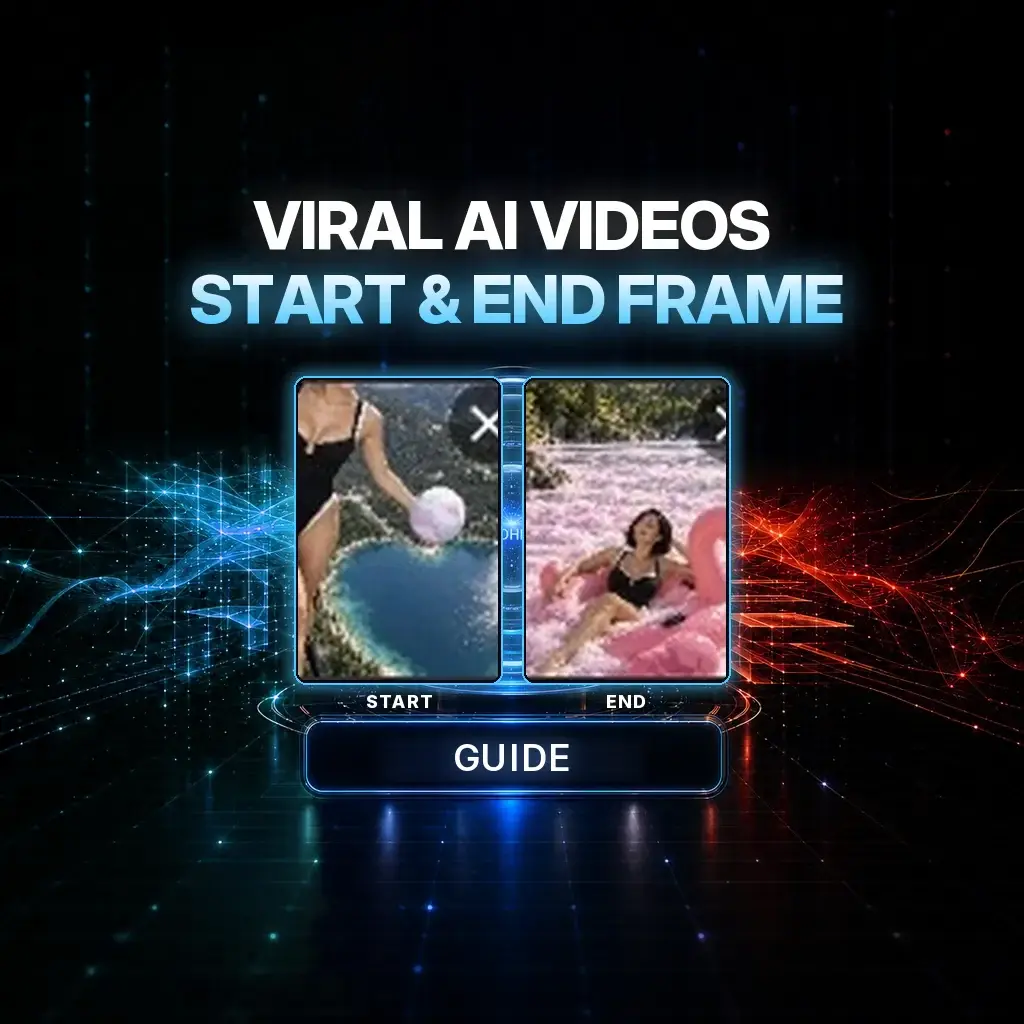
A viral AI clip is rarely a long prompt that tries to invent a whole movie. It is two stills with a job: a start frame that asks a question, a final frame that pays it off, and a motion prompt that only has to connect them.
We used this method in NeuroHelper AI to produce a 15-second vertical film — a woman in a helicopter over an alpine lake drops an oversized bath bomb, the lake turns into a giant outdoor bubble bath, and she ends up floating in a pink flamingo. The same logic works for product drops, outfit changes, and unexpected location flips.
Watch the finished film first, then use the workflow below in one workspace.
What the finished film is
The case study is one continuous 15-second, vertical 9:16 shot built around two anchor stills, not around a paragraph of adjectives. The storyboard frames below are taken from the official tutorial stills (they are small attachments from the PDF — shown at native size, not stretched):
Case study / Storyboard frames from the final film
 01 Start
 02 End
The character stays locked: short glossy black bob, black one-piece with white trim, the same face and proportions in both stills. The lake, the light, and the helicopter geography do not reset. Only the state of the water — and where she is sitting — is allowed to change.
The workflow: Write the two stills in Chat Master → generate them in Image Master → upload both to Seedance 2.5 as start and end frames → describe only the motion between them → refine one variable at a time.
Why two frames beat one long prompt
When you ask a video model to invent the opening, the ending, and every second in between from text alone, it has too many degrees of freedom. Faces drift. Wardrobes mutate. The “surprise” ending is whatever the model happened to finish on. Two strong stills shrink the problem: the model already knows where the shot begins and where it must land. The prompt’s only job is the journey.
That is why this method is the practical replacement for a generic “first and last frame” tip. The stills are not decoration. They are the contract. For a wider view of which video model fits which job, see best AI video generators, Seedance vs Kling, and how we test AI models.
The production pipeline
1. Write the two stills in Chat Master
Open Chat Master and describe the hook in plain language. Ask for two image-generation prompts that share a character, outfit, light, and environment, and that differ only in the state the viewer is meant to notice. If you have a character reference, say exactly what must not change: face, hair, clothes, proportions, accessories.
Write a detailed prompt for a photorealistic 9:16 viral AI video concept. I need two still images: a START FRAME and a FINAL FRAME. Keep the same character, face, outfit, lighting and environment in both images. Make the first frame instantly attention-grabbing and the final frame visually surprising. Give me a separate image-generation prompt for each frame.2. Generate the stills in Image Master
This guide was produced with GPT Image 2 in Image Master, at 9:16 and 2K. GPT Image 2.6 is now in the picker — use the same steps; we are not claiming a quality gap here. Set 9:16 for Shorts, Reels, and TikTok. Generate the start frame first so the action is obvious at a glance, then the final frame, reattaching any character reference. The viewer should immediately understand what has changed between the two pictures.
3. Animate in Video Master with Seedance 2.5
In Video Master, choose Seedance 2.5. The case study used 15 seconds, 720p, 9:16, MP4 — check the current picker before you generate, because duration and output options are set there, not in the prompt. Upload the start frame as @Image1 and the final frame as @Image2. In the prompt, name which image is the beginning and which is the ending, then describe the motion in chronological order.
4. Refine one variable at a time
If the face drifts, lock identity again and keep the stills. If the bath bomb looks like an explosive, tighten the object description. If the foam looks like clouds, say “real soap bubbles.” Do not rewrite the entire 15-second brief to fix one second.
Copy-ready motion prompt from the case study
This is a production brief, not a spell. Adapt objects and timing; keep the structure: name the two references, lock the character, then write timed beats. The original is longer; this is the same logic, tightened so you can paste and then extend any beat that needs more detail.
Create one continuous 15-second ultra-photorealistic vertical 9:16 cinematic video.

@Image1 = START FRAME. Use it as the exact opening composition, character, helicopter, lake, lighting and oversized bath bomb.
@Image2 = FINAL FRAME. Finish as close as possible to this image: the same woman relaxing in a large pink flamingo float on the foamy lake.

The woman in both images is the SAME person. Preserve her face, proportions, short glossy black bob, skin tone, and black one-piece swimsuit with white trim. After she enters the water, her hair can be wet but must stay the same bob. Do not redesign the swimsuit.

Setting: a realistic alpine lake, forest, rocky shore and mountains. The water starts clean turquoise-blue. The helicopter flies LOW over the open water, not over the forest. Natural daylight, realistic reflections, rotor wind in her hair and on the water.

0–2.5s: Begin from @Image1. She stands at the open helicopter doorway holding ONE oversized pastel bath bomb (round, matte powder texture, pink/lavender/blue, no fuse, sparks or metal). She looks down and prepares to release it.
2.5–4s: She extends her hand and drops the bomb straight down toward the center of the lake. She stays in the helicopter. The camera briefly follows the fall. Real gravity, light rotation, rotor and wind only — no music.
4–5.5s: The bomb hits, fizzes, and dissolves into white, pink and lavender foam. Do not show the bomb again after it dissolves.
5.5–8s: Aerial view as realistic wet foam spreads until the lake reads as an enormous outdoor bubble bath. Some turquoise water may remain. Do not make the foam look like clouds, cotton, snow or paint.
8–12s: Cut back to her as she leaves the helicopter and enters the water naturally.
12–15s: Arrive at @Image2 — she relaxes in the flamingo float on the foamy lake.

No identity change, no extra characters, no visible typography or map markings.
The valuable lines are the ones that remove ambiguity: “LOW over the lake,” “no fuse,” “real soap bubbles,” and “finish as close as possible to @Image2.” Style adjectives do less work than those constraints.
How to do this in NeuroHelper AI
You do not need a separate subscription for each stage. In NeuroHelper AI the path is:
- Chat Master. Turn a one-sentence hook into two image prompts and a motion brief. Attach a sketch or a face reference if you have one.
- Image Master. Build the start and end frames with a current image model such as GPT Image 2.6. Keep 9:16 and the same identity language.
- Video Master. Choose Seedance 2.5, set duration and aspect, attach the two frames in the order the model supports, and paste one motion prompt. Revise only the beat that fails.
- Audio Master, if needed. If native audio is not enough, add rotor, splash, or music in Audio Master and keep speech or effects intelligible.
Browse current models from the models hub. If you currently work in Pika or Higgsfield, start at the alternatives hub — including Pika and Higgsfield. For more directing craft, see cinematic AI action videos and AI video hooks. Other guides in this series cover product ads, billboards, and camera-angle workflows.
Mistakes that flatten a start–end video
- Letting the two stills disagree. A new haircut or a different shoreline between frames is a consistency failure, not a “style” choice.
- Writing the whole story only in the video prompt. If the ending is not already visible in the final still, the model has to invent it.
- Overloading fifteen seconds. One transformation — the lake becoming a bubble bath — is enough. Save a second idea for a second clip.
- Forgetting to name @Image1 and @Image2. If the model cannot tell which still is the start, it may play the ending first.
- Rewriting the entire brief to fix one second. Change the failing clause; keep the identity lock that already works.
Watch the result again, then start your own
The finished film is the test: two readable stills, one transformation, and a character who is still herself at the end. Watch it once more, then adapt the prompts to a product, a sport, or a location of your own.
Frequently asked questions
Do I need both a start frame and an end frame for a viral AI video?
You can generate from text alone, but two anchor stills give the model a start state and a payoff to hit. The start frame should ask a visual question; the final frame should show what changed. That is the method used in this guide.
Which models did this start-and-end-frame workflow use?
The original guide generated the stills with GPT Image 2 and animated them with Seedance 2.5. GPT Image 2.6 now replaces it in Image Master; use the same steps. Check duration, references, and output options in the Video Master picker before you generate.
How long should the Seedance 2.5 clip be?
The case study is 15 seconds, which is enough for one clear transformation with timed beats. A shorter hook can work in five to eight seconds if the stills already tell the joke. Exact limits depend on the model you select in Video Master.
What if the character changes between the two stills?
Regenerate the second still with the same identity language and the first still attached as a reference. Do not try to repair a mismatched pair only in the video prompt.
Can I run this whole workflow in NeuroHelper AI?
Yes. Use Chat Master to write the two image prompts, Image Master to generate the stills, Video Master with Seedance 2.5 to animate the gap, and Audio Master if you need extra sound. Start with a $1 trial, then choose Basic $19 or Pro $49.
How much does a start-and-end-frame video cost in NeuroHelper AI?
It depends on the model, duration, resolution, and references you choose. Video Master shows the current estimate before you generate. You can start with a $1 trial, then choose Basic $19 or Pro $49.