
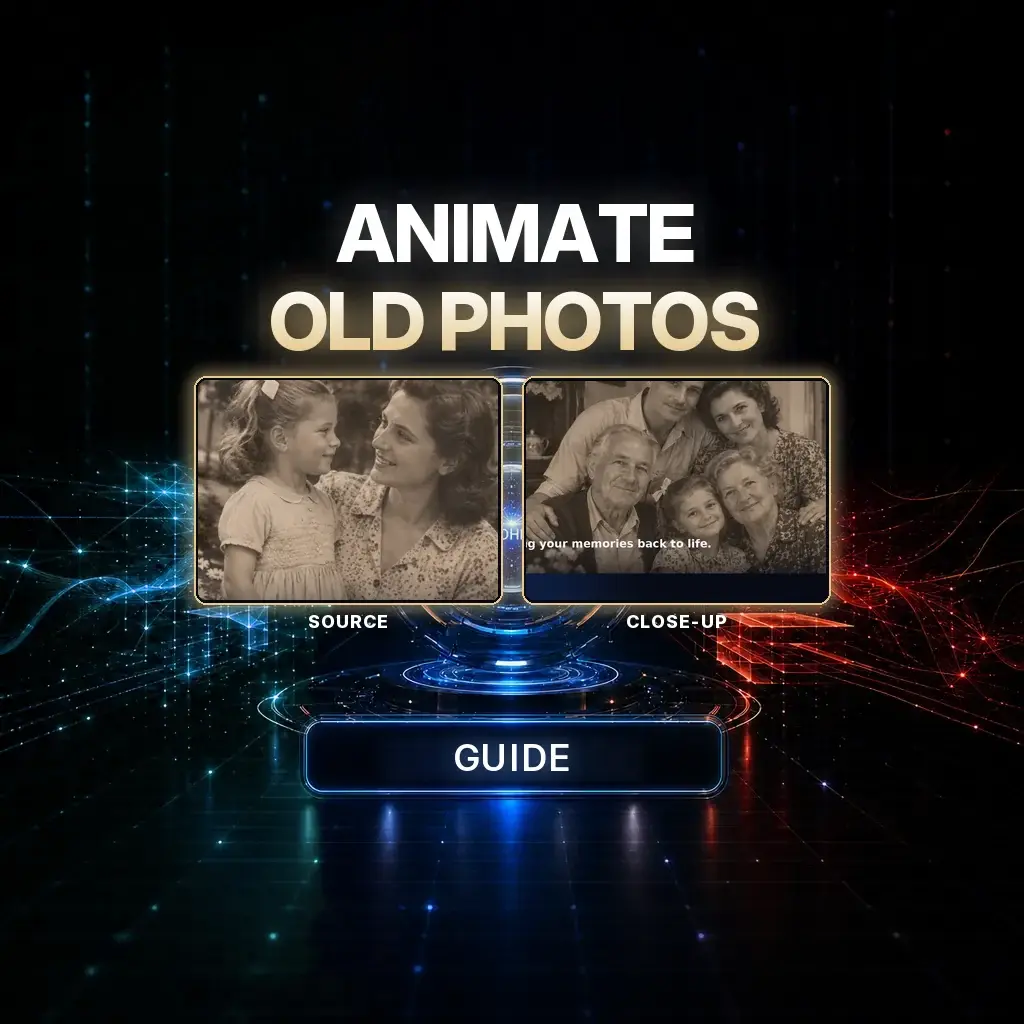
Animating an old family photo is not a remake. It is a short, emotionally believable “living memory”: the same people, the same clothes, the same room — plus a blink, a breath, a gentle hug, or a child running a few steps into someone’s arms.
The official NeuroHelper tutorial does this in Video Master with Kling 4.0. A sepia mother-and-child photograph becomes a color memory; a second vintage group portrait is the same idea at a slightly wider frame. Watch the film first. The stills below are frames from that public guide, shown small, like prints on a table — not full-width hero banners.
The photographs the official guide uses
Case study / Frames from the official tutorial photographs
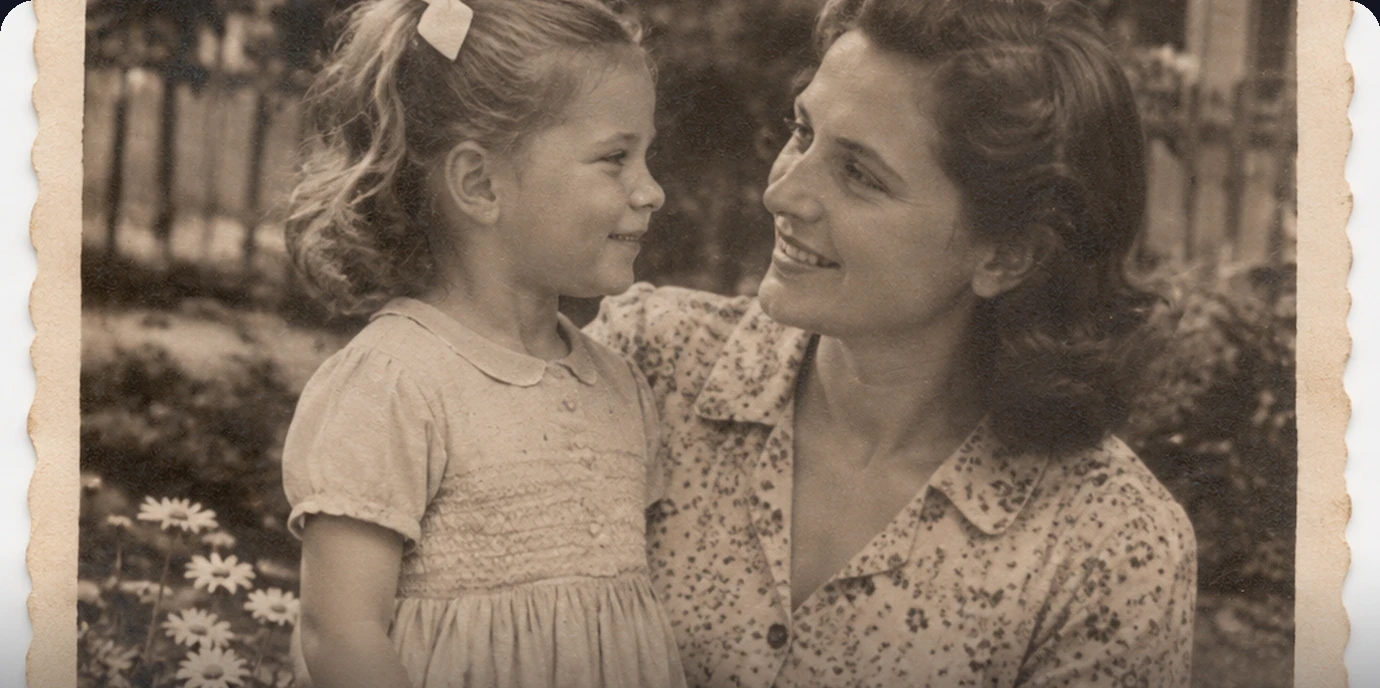 01 Photo
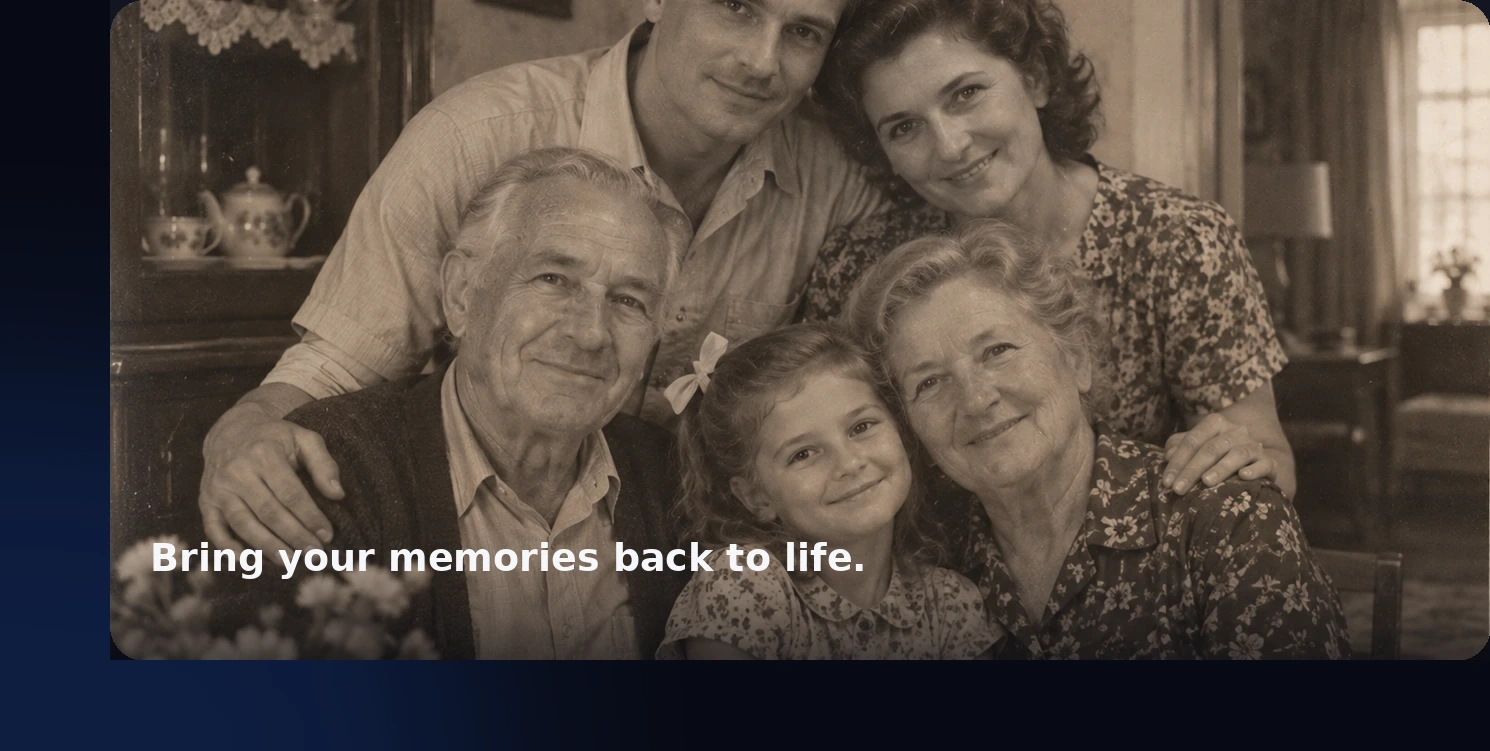 02 Memory
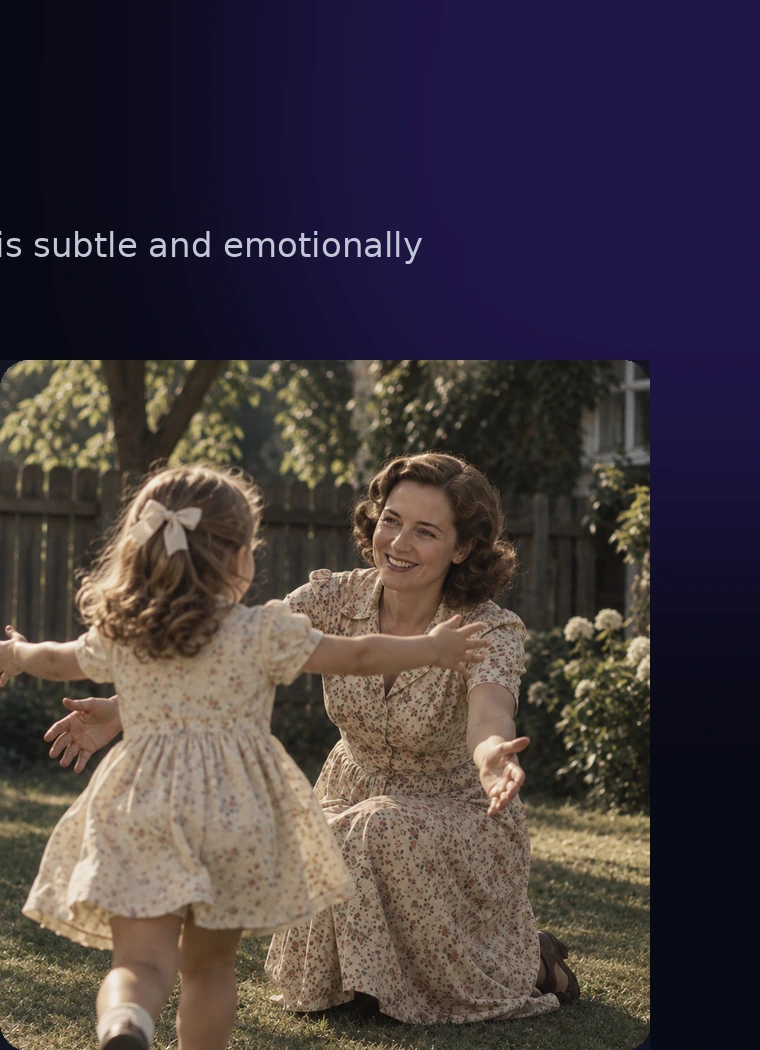 03 Group
These images come from a tutorial that is already public. If you are animating your own album, use photographs you have the right to work with, and be especially careful with pictures of children — this method is for bringing your family’s pictures to life, not for publishing someone else’s.
The workflow: Open Video Master, choose Kling 4.0, attach one photograph → write a short motion prompt that keeps identity and setting and asks for subtle movement → generate a few seconds → or, for more control, ask Chat Master to write that Kling prompt from the photo first.
Why less motion is more believable
A living memory fails when it becomes a restage: new outfits, a new room, a dance the photograph never implied. The official advice is almost the opposite of a hook or an action reel. Blink. Breathe. A small smile. A gentle hug. A slight push-in. If a child runs, it should be a few steps across the same ground, not a new choreography. That is the same realism habit as the AI realism playbook — weight, continuity, no mannequin faces — applied to a picture that already has a history. For other image-to-video paths that do want a bigger move, see hooks and start and end frames.
Two ways to run the workflow
Quick path: photograph straight into Kling 4.0
Open Video Master, choose Kling 4.0, attach one scan or photograph, and paste a short prompt. The official tutorial showed a five-second, 1080p example; ten seconds can work if the motion stays small. Confirm duration and output in the current picker before you generate — those options live there, not in the text.
Animate this photo naturally. Keep the same people and identity. Add subtle blinking, breathing and gentle movement. Keep it realistic.More control: write the Kling prompt in Chat Master first
Attach the photograph in Chat Master and ask for a concise Kling prompt that holds faces, clothes, and setting. The official tutorial used a capable Chat Master model for this step (Claude Fable in the screenshot); any current Chat Master model that can see the image will do the same job. Copy the result into Kling and generate. If the first pass over-acts, shorten the action verbs and say “almost still.”
Look at this photo and write a concise Kling prompt to animate it naturally. Keep the same people, faces, clothes and setting. Allow only subtle, believable motion (blink, breath, a small smile, a gentle shift in weight). Do not change identities, wardrobe, age, or the room. Do not add new people or a new background.How to do this in NeuroHelper AI
- Prepare the scan. A reasonably sharp photograph helps. Phone scans of a print usually work if you avoid glare and keep the edges of the picture in the frame. If the original is badly damaged, you can still try this method, but do not ask the model to invent a younger face or a different room in the name of “restoration.” Crop out album captions if you do not want them in the motion (we recropped caption bars off the official stills used on this page).
- Chat Master, optional. Ask for a short Kling brief that preserves identity. Do not ask it to “improve” faces.
- Video Master. Kling 4.0, the photo attached, five or ten seconds if the picker allows, subtle motion only.
- Audio Master, rarely. A living memory often works silent, or with a very quiet room tone in Audio Master. Avoid a loud score that turns the clip into a trailer.
Kling is one current Video Master option among others — Seedance 2.5 and Wan 3.0 are also live — but this particular official guide is a Kling walkthrough, and that is the model we follow here. Compare tools in best AI video generators and Seedance vs Kling. For photo restoration or new angles rather than gentle animation, see new camera angles without a reshoot.
Mistakes that break a living memory
- Too much action. A dance, a new camera orbit, or a costume change is a different genre.
- Beautifying or rejuvenating faces. The people in the photograph are the point. Do not “fix” them.
- Adding people who were not in the frame. Continuity includes the number of subjects.
- Publishing someone else’s family, especially children, without the right to do so. Use your own album, or images you are cleared to share.
- Leaving printed captions in the scan if you do not want them animated. Crop first.
Watch the official memory, then try one photo
The test is recognition: would a relative still know everyone, and would the motion feel like a breath rather than a remake? Watch the short film, then attach one photograph you have the right to use.
Frequently asked questions
How do I animate an old photo with AI in this guide?
Attach one photograph in Video Master, choose Kling 4.0, and ask for subtle, natural motion while keeping the same people, clothes, and setting. You can also ask Chat Master to write that short Kling prompt from the photo first. Less motion is usually more believable than a restage.
Which model does the official tutorial use?
The official tutorial used Kling 3.0, which Kling 4.0 now replaces in Video Master. The walkthrough showed a short 1080p example (five seconds in the interface); follow the same steps with Kling 4.0 and confirm duration and output in the picker before you generate. Other Video Master models are available, but this article follows the official Kling path.
Should I restore or beautify the faces first?
Not for this method. The point of a living memory is the people already in the photograph. Ask the model to keep identity, age, wardrobe, and room, and only add blink, breath, or a small gesture.
The photo includes a child. Can I still use this workflow?
Use photographs you have the right to work with, and be especially careful with pictures of children. The stills in this article come from an already-public official tutorial. For your own posts, prefer your family’s album or images you are cleared to share, and do not publish someone else’s children.
Do I need a start frame and an end frame?
No. This workflow is one photograph treated as the scene to hold. If you instead want a big transformation with a planned payoff, use the start-and-end-frame guide, which is a different job.
How much does a short Kling 4.0 animation cost in NeuroHelper AI?
It depends on the model, duration, resolution, and references you choose. Video Master shows the current estimate before you generate. You can start with a $1 trial, then choose Basic $19 or Pro $49.